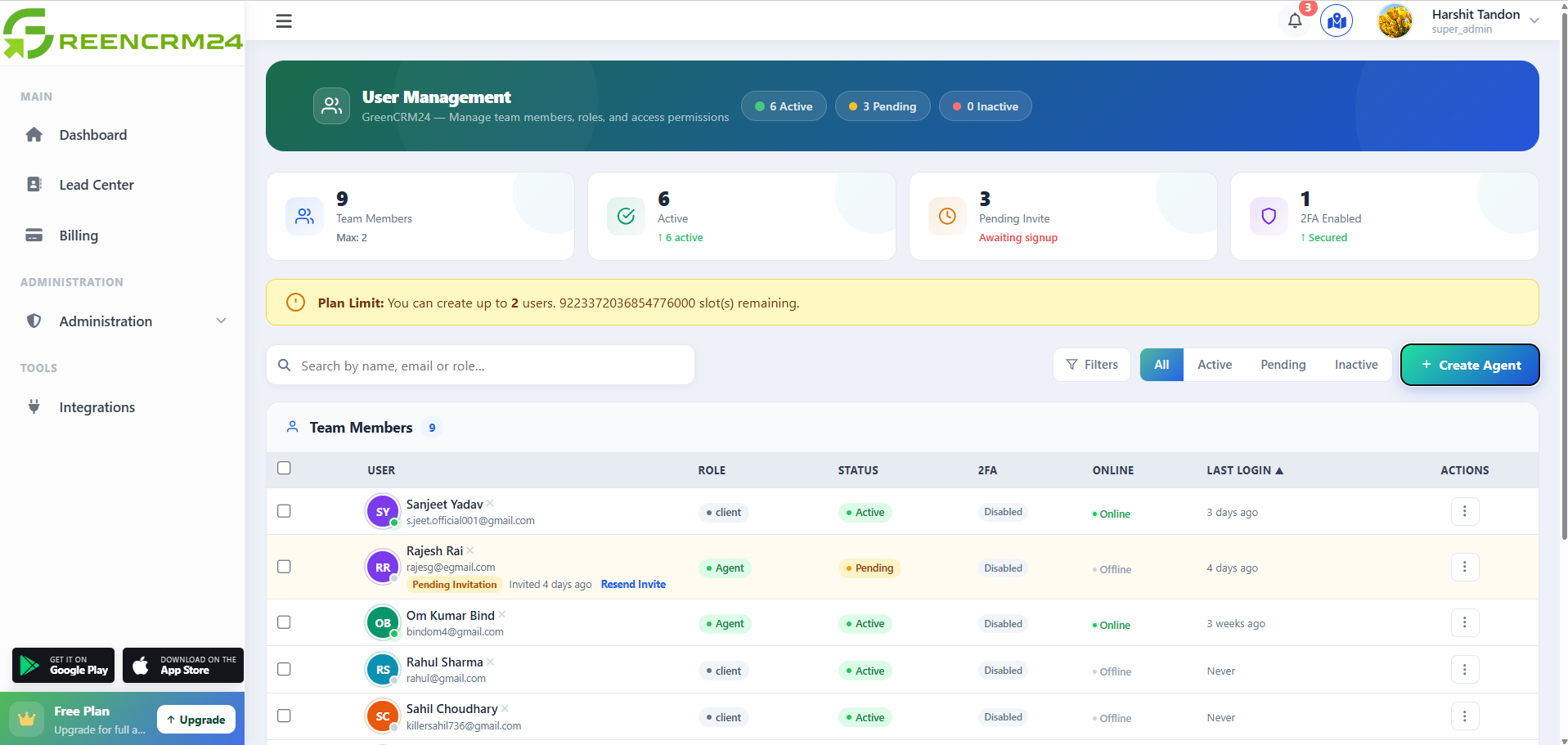
Managing a team becomes easier when every team member has their own GreenCRM24 account. Instead of sharing login details, you can create individual users and give them access to the CRM based on their responsibilities.
Steps to Add a New User
First, log in to your GreenCRM24 account using your administrator credentials. From the main dashboard, go to Administration and select User Management.
On the User Management page, you can view the users already added to your account. To create a new team member, click the Add New User option.
Enter the required information for the new user, such as their name, email address, contact details, and login information. Make sure the email address is correct because it may be used for account access and communication.
Next, select the appropriate role or permissions for the user. Assigning the right access helps each team member work with the features and information they need without giving unnecessary access to other areas of the CRM.
After checking all the information, click Save or Create User to complete the process.
The new user will then be added to your GreenCRM24 account and can use their assigned credentials to access the system.
Why Add Individual Users?
Creating separate user accounts makes it easier to manage your team, assign leads, track activities, and understand individual performance. It also improves account security because every team member has their own login.
With GreenCRM24, you can organize your team in one place and manage user access according to your business requirements.