Integrations & APIs
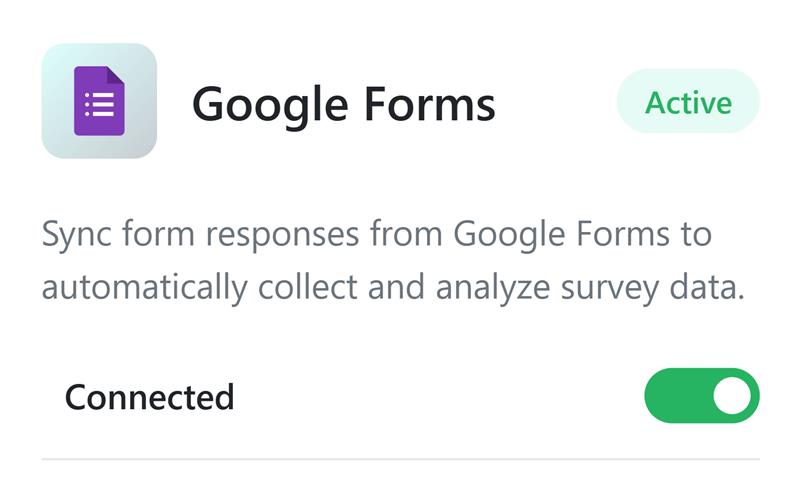
How to Connect Google Forms to GreenCRM24 Without Zapier, Make, or Other Middleware
Streamlined Guide: 8 Key Steps to Connect Google Forms with GreenCRM24
Phase 1: Enable Google Scripts API
-
Log in and turn ON the Google Apps Script API.
Phase 2: Create & Publish Your Google Form
-
Create a form at forms.google.com.
-
Click Send, copy the public link, and extract the Form ID from the URL.
Phase 3: Connect in GreenCRM24
-
In GreenCRM24, go to Integrations → Google Forms and toggle it ON.
-
Click Connect Google Account, choose your account, and grant permissions.
Phase 4: Link Your Form
-
Paste your Form ID into the field and click Get Form.
-
Click Connect Form and confirm in the pop-up.
Phase 5: Initialize the Script
-
Click Initialize Script.
-
In the new tab, select your
GreenCRM24-FormIDscript. -
Choose the correct function (e.g.,
initialize) and click Run.
Phase 6: Grant Final Permissions
-
In the permission pop-up, click Review Permissions → Advanced → Go to... (unsafe) → Allow.
Phase 7: Complete Setup
-
Wait for the “Trigger created successfully” message, then close the tab.
-
Back in GreenCRM24, click Go to Dashboard.
Phase 8: Test
-
Submit a test form entry. The lead will appear automatically in your CRM.

You might also like
Comments (0)
No comments yet
Be the first to share your thoughts!
Leave a Comment